Added support for light, dark and tinted icons, a new feature in iOS 18. In order to do this, I have reverted the Pro app icon back to black but with a yellow circle.
When searching a list of transactions using date ranges, these now default to 00000000 (the beginning of time) and today. Either can be omitted, so you can use //- to filter all tranactions to today.
When viewing an account, use the tick button to hide or show reconciled transactions (as before). You can now hide them just in the selected account or across all accounts. Also use the double tap gesture to quickly start manual reconciling.
If you use the time (of day) added option when ordering transactions that fall on the same day, you can now quickly move a transaction to the end of the day using the blue i button(s). This will give a bit more control over the day order.
When cloning a transaction, you can now edit the cloned amount or choose between the last used amount (default) or zero (top left).
Added support for the Venezuelan Bolívar (VES).
Minor improvements to the account and transaction alerts.
MINOR UPDATES …
7.3.1 was released on 23rd January 2025 to fix a permissions issue when trying to import or restore a file into the app.
7.3.2 (iOS only) was released on 15th April 2025 to fix two more bugs, specifically when exporting CSV files or restoring backups.
In iOS 17 Apple introduced a new transaction trigger for use in Personal Automation, part of their Shortcuts app. This can be used today to build up a CSV file of Apple Pay transactions (NFC only, not from a web browser), ready to import into Account Tracker.
Run the Shortcuts app (from Apple), select automation and then add a new automation.
Scroll down or search for Transaction and select it. Select the cards you want to automate, leave all the categories checked, don’t filter on Merchants and select Run immediately. Leave notify when run de-selected and tap Next. Choose New Blank Automation.
So far so good. We now need to add a bunch of actions (up to 14 in total).
Date, Card and Merchant (4-5 actions)
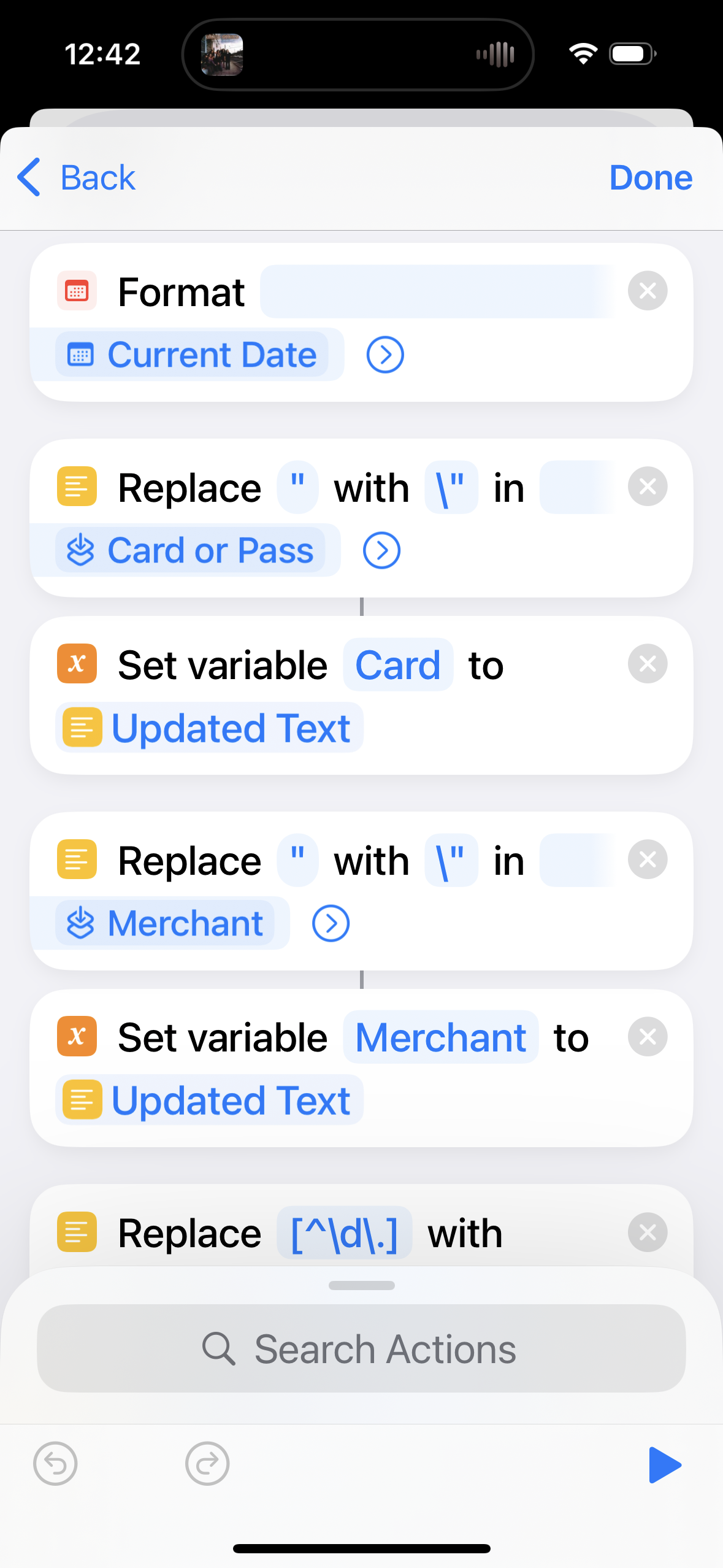
In the search actions box type format and choose Format Date. Tap the Date box, scroll along the Select Variable row and choose Current Date. Set Date Format to Custom and set the format string to dd/MM/yyyy HH:mm:ss (note the capitalisation is very important). This action creates a (magic) variable called Formatted Date that we will use later.
Next we will grab the card (i.e. account name) and merchant (details/payee field). Since these are arbitrary text strings we need to “escape” any “ characters. Add a Replace Text action. Set the first box to “ and the second to \”. Change the variable to Shortcut Input then select it again and change it to Card or Pass (this double selection takes a bit of getting used to).
Now add a Set Variable action and set variable Card to the (magic) variable Updated Text. Note if you only have one card, you can skip the replace text and simply set Card to your account name.
Repeat these two steps for the Merchant field, setting variable Merchant to the (magic) variable Updated Text.
Amount (7 actions)
Handling the amount is more complicated as it isn’t a number! We first need to strip all none digits or decimal separators.
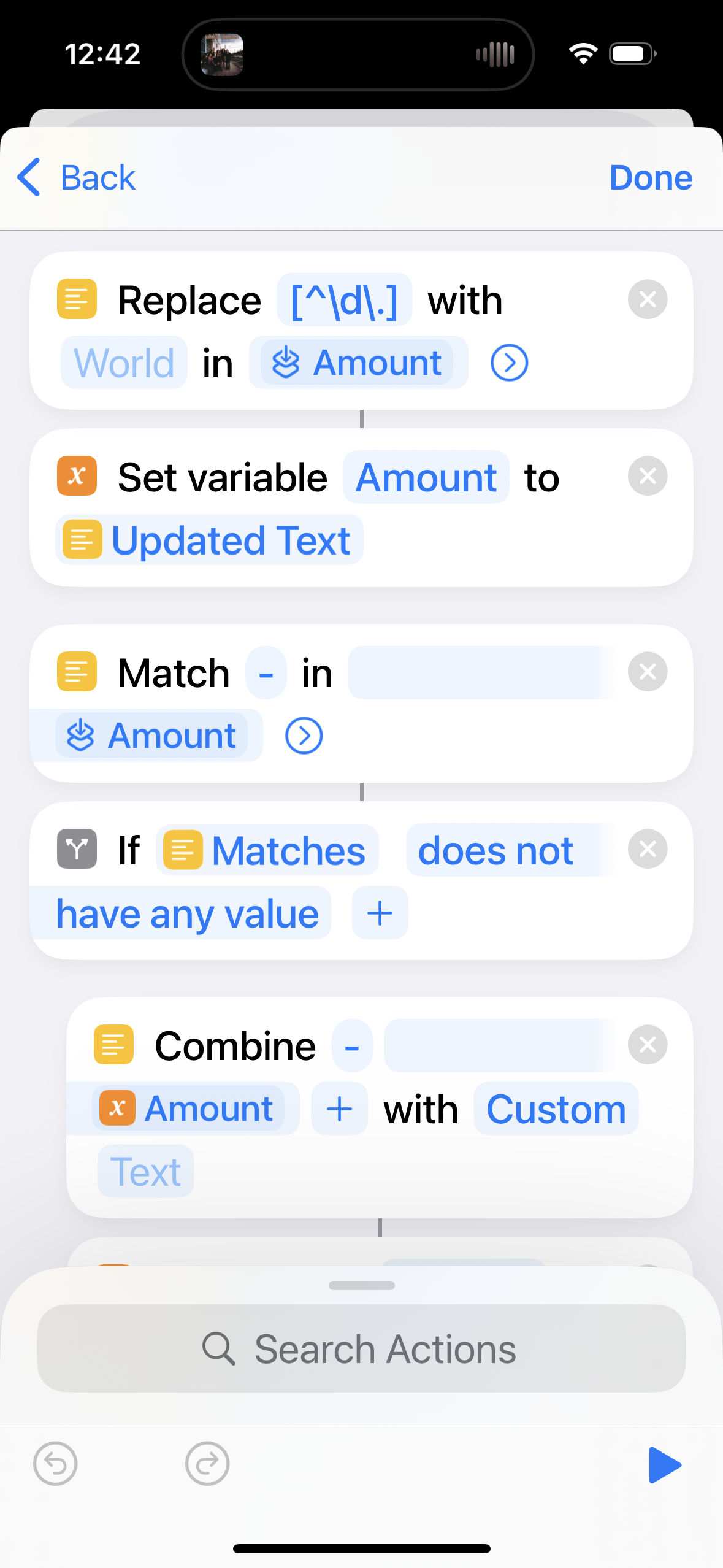
Add a Replace Text action, set the first box to [^\d\.] (or [^\d\,] if your region uses a comma as a decimal separator) and leave the second box empty. Change the variable to Shortcut Input then Amount (note double selection). Tap the right arrow and set Regular Expression to on.
Now set variable Amount to the (magic) variable Updated Text.
Since my app requires a negative for spending and positive for refunds, this is the opposite to what we are given. Only if the original is NOT negative do we need to add a negative (-) prefix. To do this, add a Match Text action, set the first box to – and change the variable to Shortcut Input then Amount (double selection).
Next add an if action setting the first box to the (magic) variable Matches then does not have any value. You can delete the Otherwise action as it is not needed.
To make the amount negative, add a Combine Text action, setting the first box to – and the second to the Amount variable. Set with to Custom and leave the last box empty.
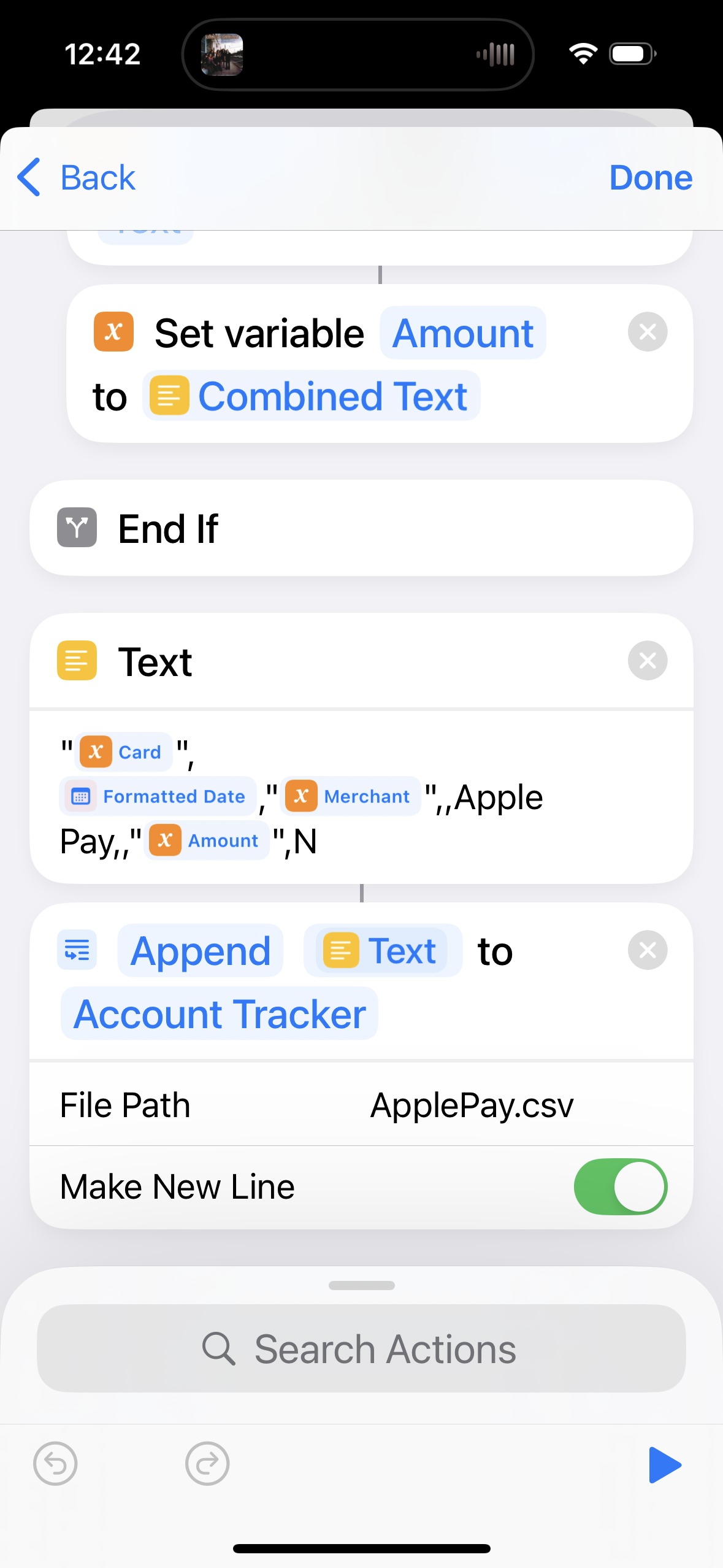
Now set variable Amount to the (magic) variable Combined Text. These two actions need to be dragged to between the if and end if actions.
Save Transaction to CSV File (2 actions)
The final two actions are building a text string to import then appending this to a file. Add a Text action and set it to
“Card”,Formatted Date,”Merchant”,,,,”Amount”,N
replacing Card, Formatted Date, Merchant and Amount with their actual variables. The card, merchant and amount need to be double quoted. You can optionally set the notes (5th column) to Apple Pay.
To append to a CSV file, add the Append to text file action, setting the first field to the (magic) variable Text and for the second browse to a folder (I use the Account Tracker folder in iCloud Drive). Set the File Path to be a filename (e.g. applePayTransactions.csv) and set Make New Line to on.
Testing
That’s basically it. You can test some of it by tapping the play automation (play) button at the bottom right. This won’t have actual transaction details but if you scroll down (or view your CSV file) it should output something like
“”,18/11/2024 17:23:00,””,,,,”-“,N
You can only properly test it by buying things and it took me about 8 purchases to get things working properly! If your automation doesn’t work, please double check with the above first!
Final thoughts
Once working I recommend importing periodically, once you have a number of transactions. After importing make sure you delete the CSV file to avoid duplicate transactions.
If anyone uses this with a refund I would be curious to know if the amount comes through as negative.
Added an option to show the unreconciled balance of an account. This is set by double tapping the balance at the top of the account view (as it is for other balance types).
Changed the way you add and edit split transactions. This is now done directly from the transaction edit screen, simply add multiple categories and set their amounts.
When setting the details or category fields, an earlier update changed this to only show those for the selected transaction type (e.g. spending, income, transfers … etc). A few users weren’t setting the transaction type first, so I have changed this back but now show options for other transaction types in grey.
Similarly when cloning a transaction, the others section will show non-selected transaction types.
None of these changes apply to the Mac version, however I have updated it to bring the code into line with iOS.
MINOR UPDATES …
7.2.1 (for Mac) was released on 5th February 2024 to add support for autocompletion (exact match only) when manually entering the transaction details and category fields.
7.2.1 (for iOS) was released on 7th February 2024 to further streamline the options presented when cloning a transaction.
7.2.2 (for Mac) was released on 12th April 2024 to fix an issue with autocompletion.
7.2.2 (for iOS) was released on 22nd May 2024 to fix a crash when exporting splits.
7.2.3 (for Mac) was released on 7th October 2024 to fix a bug that caused issues when running the app in a different time zone.
Added features from the account views to most other transaction views. For example section totals (spending and income only), quick date editing (blue i buttons) and manual per transaction reconciling (swipe right to left).
Added quick editing of a transaction amount, accessed by swiping right to left across the transaction.
Changed the way you set negative balances and alert limits, to allow use of the bigger numbers keypad on the iPhone.
When cloning a new transaction, the options presented are now based on the transaction type and are searchable. To clone a transaction, tap the + button a second time (as before).
When exporting splits as a CSV file, include full transaction info per split. If you would prefer the splits total to be removed, let me know.
Moved the sync confirmation button closer to the settings button to improve this workflow (iPad only).
Fixed a bug when calculating group and overall totals for very large balances.
MINOR UPDATES …
7.1.1 was released on 8th January 2024 to fix a bug where transaction amount changes were not being synced to other devices.
Changes to bring the app into line with v7.0 on iOS, specifically …
When searching for transactions, you can now narrow this down to a specific date by including //yyyymmdd at the end of the search text. yyyymm or yyyy also work, as does the range yyyymmdd-yyyymmdd.
Use the iOS app setting to make the balance graph coloured based on the balance trend (rising is green, falling red, just like the stocks app). Months or weekends are always shown when touching the graph.
Also …
Made the app universal, meaning it includes support for both Apple silicon and Intel.
The app now requires macOS 10.13 or above.
MINOR UPDATES …
7.0.1 was released on 22nd October 2023 to fix a layout issue on the report views.
When exporting your account balances, only those accounts visible will be included, e.g. if you are hiding hidden accounts.
When searching for transactions, you can now narrow this down to a specific date by including //yyyymmdd at the end of the search text. yyyymm or yyyy also work, as does the range yyyymmdd-yyyymmdd.
Added an option to view reconciled/historical reminders, by tapping the tick button on the top toolbar.
Quickly skip to a specific report by tapping the Reports icon.
Added a setting for short vs full screen notes.
Added a setting to make the balance graph coloured based on the balance trend (rising is green, falling red, just like the stocks app). Months or weekends are always shown when touching the graph.
MINOR UPDATES …
7.0.1 was released on 6th November 2023 to add more receipt verification checks (excludes Pro version).


 Updated to version 18.4 of the Database of British and Irish Hills (DoBIH), including an updated revision of the Synges.
 Added support for light, dark and tinted icons, a new feature in iOS 18. In order to do this, I have reverted the Pro app icon back to black but with a yellow circle.

 Graham Haley